NOTE: This guide is for quad booting on a single harddrive while installing wireless interenet access on all platforms and basic networking to access windows network shares.
NOTE: This guide assumes that you know atleast something about computers. It is not a full walkthrough step by step, it generalizes some basic, basic steps.
Preface
This guide is a comprehensive guide for quad booting on a single harddrive with wireless internet access on all platforms and introducing basic networking on all platforms to access network shares on other computers. It took me a bit of time to figure out so I decided to write a guide for others who were interested in going this route. This guide is based on specific hardware and it is uncertain if the procedure will work on other hardware. If you are going to attempt quad boot I would strongly recommend installing the opperating systems seperately first, so you make sure they all work by themselves. Also, it is very helpful to have a usb flash drive handy and a seperate computer running windows so you can download stuff as needed and put it on the flash drive. That being said, lets continue.
Requirements
Hardware Requirements
- 1) PC with SSE2 instruction set
- You can use SSE3 but I have no experience with it
- 2) Empty Harddrive
- I strongly recommend that you start with a clean harddrive, no files on it at all. Backup all your data on another drive and put it off to the side for now.
- 3) D-link DWL-G122 Rev B1 wireless USB adapter
- I had an old linksys PCI wireless card and it just would not work with osx and linux. However, I had great luck with the D-link usb adapter. It works under all platforms with minimal hassle. Normally they run about $50 but got mine on sale for $25. These adapters are plentiful as well so you can find them at compusa, best buy, fry's, etc. etc.
Software Requirements
- 1) Gparted LiveCD ( http://sourceforge.net/project/showfiles.php?group_id=115843&package_id=173828)
- This is a great live cd that is pretty much specific for partitioning. It works with or without an opperating system installed, partitions your drive straight forward.
- 2) Windows XP with Service Pack 2
- NOTE: You must have SP2 on the install CD. If you try to install XP with SP1, you will not have support for HD's over 128GB which means you will have to compromise in the partitioning step until you can get SP2.
- 3) Windows Vista
- Necessary.
- 4) OSx86 10.4.8 install disc
- I use 10.4.7 with the full patch upgrade to 10.4.8. If you're not a developer then you shouldn't proceed.....it being against the law and all. I've heard some rumor that there is a JaS release floating around.... (as well as an additional "ppf" patch to bring it up to date)
- 5) Suse 10.1 (http://download.opensuse.org/)
- Since I started this project, Suse 10.2 was released, I'm assuming that the install process is still the same. You can use any flavor you want, I've had decent luck with Suse since I'm not a linux master and I want as much driver support as possible. I recommend the DVD-ISO for easiest install. Also, we will be installing GRUB as the bootloader of choice. This is again, due to ease and convience. There are some problems with Vista's bootloader and the Darwin bootloader that I'm not going to get into, just take my word for it.
There is some other software needed to get internet to work; I won't mention it now as it is not pertinent for a straight quad boot.
Partitioning
Partitioning Demystified
After going through this project, I learned a ton about partitioning. There are 3 types of partitions which are Primary, Logical, and Extended. Think of it broken up into two seperate groups. Primary partitions and then Logical/Extended. A primary partition is the partition tables way of saying create a partition with a certain amount of space and separate it from other drives physically. You can have a max of 4 primary partitions on a disc (3 if you are using 1 extended partition) From my experience, most operating systems work best when installed on a primary partition which is what we will be doing. Logical/Extended is the other half of the spectrum. It's the partition tables way of saying "hey, I'm not a physical partition but i'm going to trick the computer into thinking it's a partition via software. So you can create 1 extended partition and then inside the extended partition you can create logical partitions. That way, if you are like me you can have 8 + partitions on one harddrive. It will make more sense when you boot up GParted LiveCD.
Partitioning Comments (not from original author of this article)
NOTE: I am not the original author of this article, so I could be wrong
Without realizing it, the original author of this article made a number of assumptions/decisions that ensured that the entire process would work. Here I try to explain what some of these are.
Most operating systems may work best from a primary partition, but this doesn't seem to be an issue with Linux. You can see from the SUSE Guide on Grub that Linux is just placed in a logical partition, as is done in this quad-booting article.
As for Mac OSx86, I assume based on this that it also requires a primary partition.
This article assumes that your PC's BIOS is new enough that it supports the LBA necessary to overcome the BIOS 1024-cylinder limit as explained in this dual-booting guide. This article also relies on Linux's GRUB boot manager which supports LBA out-of-the-box. If your BIOS didn't support LBA or if you didn't use a LBA-enabled boot manager, you would have to create a /boot partition near the beginning of your disk, which means you would most likely waste a primary partition on Linux. If you waste a primary partition on Linux, you will only have 2 primary partitions left for your other OS's (remember that we need an extended, which is always also primary, partition to hold the logical partitions for Linux's swap and optionally Linux's root and other data). This would have resulted in a paltry triple-boot rather than the intended quad-boot :)
All these restrictions on primary partitions can probably be rendered moot by using an advanced boot manager such as Acronis Boot Manager; see the forums.
Getting Started
1) Boot into the GParted CD.
- You should have a bunch of unallocated space.
2) Create partitions in the following order:
- 1 NTFS Primary Partition, (for WinXP)
- 1 NTFS Primary Partition, (for Vista)
- 1 FAT32 Primary Partition, (for OSx86)
- 1 Extended Partition (with the rest of the unallocated space on the drive),
The rest of the partitions will be within the Extended Partition
- 1 ReiserFS Logical Partition (for linux install)
Then the rest of your partitions as logical partitions. I have one for games, one for programs, one for video, etc.
Installing XP

Install Windows XP with Service Pack 2 to your first NTFS Primary Partition.
After installation it is imperative you do the following so Vista's bootloader isn't installed:
1) Boot into Gparted CD
2) Right click on your first Primary NTFS partition (with xp installed on it) and select "Manage Flags" from the menu. Check "hidden"
3) Right click on your second Primary NTFS partition (with vista installed on it) and select "Manage Flags" again from the menu. Check "boot"
4) Restart the computer with the Vista CD in the CDrom drive
Installing Vista

Install this to the second NTFS Primary Partition. Should be a straightforward install. Plop in the disc and letr' rip!
NOTE: If you install Vista after another OS without doing the above steps, Vista will automatically install it's new bootloader which is a pain! You do not want Vista's bootloader installed for this tutorial!
After it's installed do the following:
1) Boot the Gparted CD again
2) Right click on your second NTFS Primary Partition and click on "manage flags". Uncheck "boot"
3) Right click on your first NTFS Primary Partition and click on "manage flags". Uncheck "hidden"
Installing OSx86
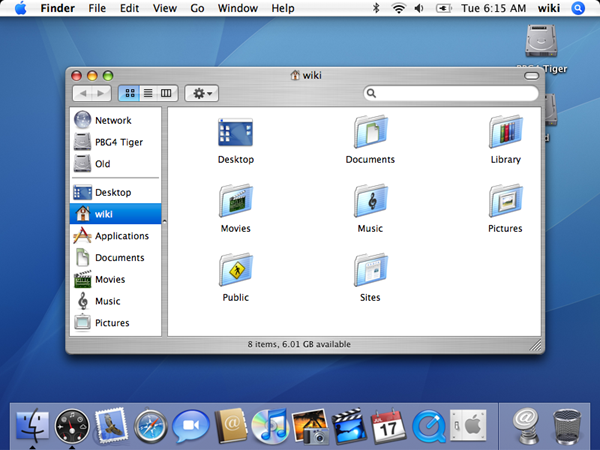
Plop in your OSx86 DVD and load it up. You will install this to the FAT32 Primary Partition. Once you are at the first install prompt follow these directions:
1) Go to Utilities > Disk Utility
2) Select your partition that you want to be OSX and go to the Erase tab
3) For Volume Format, select Mac OS Extended (Journaled)
4) Click Erase. Now the partition should not be grey, it should be black to indicate that it is active.
5) Close out of the Disk Utility and move onwards with installation.
After installation, your computer will automatically boot into OSx or you will get a "HFS+ Partition Error"
NOTE: After installation you might receive a "HFS+ Partition Error". I'm not 100% sure why this happens sometimes and why other times it doesn't appear at all. Regardless, you should be able to move ahead with the next steps and get everything to work. Don't worry if you see this error.
Installing Linux

Straight forward install. Follow the links to install Suse. Pay particular attention to the Partitioning part. You want to make sure you are installing linux on your ReiserFS partition. For me, it always says it deletes this partition and creates 2-3 different partitions in its place. Let it be so. After installation, you will notice that the GRUB bootloader is now installed.
Configuring GRUB Bootloader
Congrats if you've made it this far! So now you have Grub installed. If you're not familiar with grub it is a bootloader that comes with Suse. There are excellent indepth guides on it via the web, so I will not be going over specifics. When grub loads you should see Suse 10.1, windows 1, windows 2, failsafe and Suse 10.1 (safemode). What you should do at this point is test the Suse 10.1 loads, and both windows loads to ensure they work and you boot up to the correct system.
Adding OSx86 to the GRUB menu
To add OSx86 to the GRUB menu do this:
1) Copy the folder "i386" from the OSx cd and put it in /boot/grub/ What I did is copied the files over in windows to a flash drive and then copied them from the flash drive to my home space and then used the following command: cp -r /home/i386 /boot/grub/i386
2) Go To Applications > System > YaST
3) Go To "System" and select "Boot Loader"
4) Click "Add"
5) Select "Other System (Chainloader)"
6) Type in OSx86 for your Section Name and for Device select browse.
7) Browse to where you saved your i386 folder and select the chain0 file. This means you should have /boot/grub/i386/chain0 in the field where it says device
8) Click OK and you're done.
NOTE: If you try editing the menu.lst file straight, it will not show OSx as a choice. You must initially use Yast in order to get the option to show in GRUB then if you desire you can edit it manually.
Aquiring wireless internet in OSx86
Getting internet to work in OSx86 is pretty easy with the D-link DWL-G122 Rev B1 wireless USB adapter.
1) Download drivers from [1]
2) Install and restart computer.
3) When you plug in the adapter, the RaLink utility will pop up automatically. You'll have to wait a minute or two, but you should have internet. If for any reason you don't have internet, try unplugging the USB adapter and plugging it back in.
Aquiring wireless internet in Linux
I could not for the life of me get the Ralink drivers to work properly. So I used NdisWrapper. If your not familiar with NdisWrapper, it is a software package that "wraps" around your windows wireless driver so it makes the driver believe it's in windows. It will suffice.
1) Select Applications > System > YaST
2) Click Software > Software Management
3) Type in "ndis" in the search field
4) Select ndiswrapper and all of it's counterparts and install
Now you need to locate and install the Windows-based drivers for your device. There are two files that you will need to find. One is an *.inf file that basically tells your machine how to setup the driver and the other is the actual driver itself which has a *.sys extension.
5) Locate your *.inf and *.sys driver files on your wireless adapter driver disc.
6) In a terminal window browse to where you copied the two files. Then type in the following:
ndiswrapper -i.inf
Where
7) To ensure it installed correctly type:
ndiswrapper -l
It should say "driver installed"
8) Next load NdisWrapper by typing:
modprobe ndiswrapper
9) Check to make sure the driver is loaded properly by typing:
iwconfig
If you were successful, you will see an entry in wlan0 detailing wireless information
10) Go To Applications > System > Yast
11) Select Network Devices > Network Card
12) Select User Controlled with NetworkManager
13) Click "Add"
14) For Device Type select "Wireless" and for Configuration Name type "0"
15) Click next, next again, and enter in your network information (SSID, encryption key, etc.)
16) We need to make sure NdisWrapper loads every time Suse loads, so go to Applications > System > YaST > System > /etc/sysconfig Editor
17) Go To System > Kernel > MODULES_LOADED_ON_BOOT
18) Type in:
ndiswrapper
Mounting a Windows Network Share in OSx86
From The Finder click Go->Connect To Server
Type in smb://
You can also click Browse and use the finder to try to find your server. This will only show servers within the same workgroup though...
Mounting a Windows Network Share in Linux
This section is geared towards people who have another computer with a network share.
1) Make a directory for the mountpoint by typing in the terminal:
mkdir /mnt/
2) Mount the share by typing in the terminal:
mount -t smbfs -o username=,password= // / /mnt/
If you want to share a folder on your linux computer with a windows computer, install Samba and edit your smb.conf. Many graphically oriented linux distributions provide a GUI for this, but this would be distribution dependent. I believe gnome-system-tools provides a nice interface, as well as kde's kcontrol application.
In KDE open Konqueror type into the address bar:
smb://
There are also ways to connect via Gnome, other GUIs as well as the terminal
Conclusion
After heavy experimentation I have concluded that this is the best/easiest way to get a quad boot working. I've tried different partitioning methods and different orders of OS installs (putting Vista first, putting linux first or in the middle, etc.) and nothing has worked well except for this method. Feel free to experiment though if you are brave.
After sucessfully quad booting with one harddrive you can get a bit more advanced and add a 2nd harddrive as a slave in your ide cable. If you do this after the installs you will break GRUB and will need to put in the Suse DVD and try to repair the bootloader or get to a command line where you can access the bootloader.
Why in the world would anyone want to Quad Boot? I have no freaking clue unless you are crazy! That or you are thirsty for knowledge and desire full command over the three main operating systems while having very limited resources.